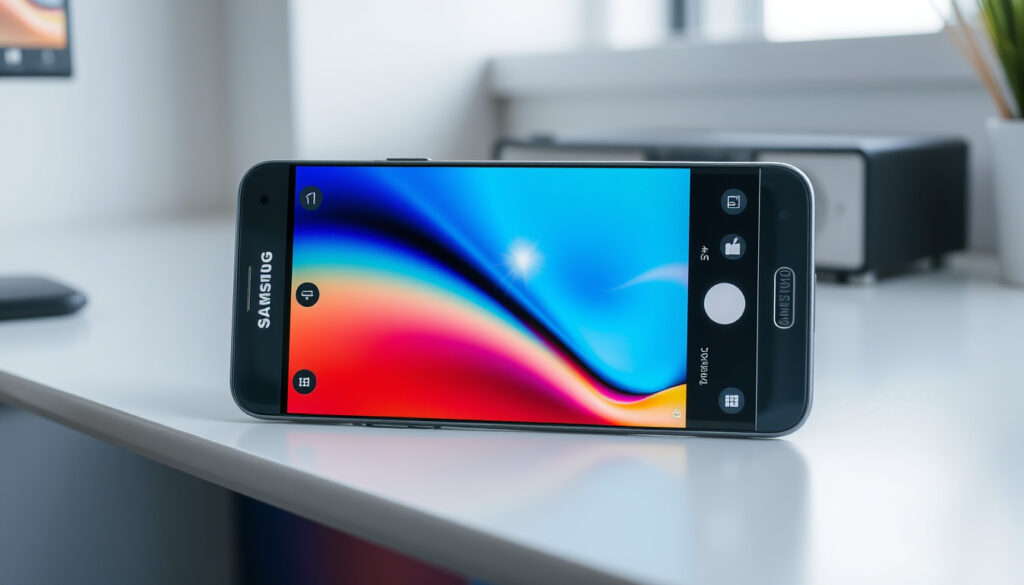
How to Screenshot on Samsung: All Methods Explained
Every Samsung Galaxy owner has been there: you need to capture something on your screen right now, but your hands are full or your buttons feel stuck. The good news is that Samsung has built more ways to screenshot than most people ever discover. This guide walks you through every method—button combos, gestures, voice commands, and quick-access tiles—so you can pick whatever works best for your situation.
Standard method: Power + Volume Down · Alternative methods listed: 6 ways · Gesture option: Palm Swipe · Quick settings access: Pull-down panel
Quick snapshot
- Power + Volume Down works on all Galaxy devices (Samsung Support)
- Palm Swipe enabled via Settings > Advanced features > Motions and gestures (Samsung Support)
- Exact step variations between specific Galaxy models (A-series vs S-series)
- One UI 7/8 specific changes to gesture recognition
- Screenshot methods confirmed on One UI 5, 6, and newer (YouTube Tutorial)
- Palm swipe feature introduced in earlier One UI versions (YouTube Tutorial)
- Good Lock modules unlock Back Tap and NavBar screenshot buttons
- Voice assistants increasingly handle screenshot tasks hands-free
Key specifications and options for Samsung screenshot methods are summarized in the table below.
| Label | Value |
|---|---|
| Official combo | Power + Volume Down |
| Flash indicator | Screen flashes on capture |
| Save location | Gallery > Screenshots |
| Gesture enable path | Settings > Advanced features > Palm swipe |
| Alternative methods | 6 ways (gestures, voice, quick panel, edge, app, accessibility) |
| Edge panel limit | 12 shortcuts maximum |
How do I take a screenshot on Samsung?
The most reliable method works on every Galaxy phone and tablet: press and hold the Power key and the Volume Down key simultaneously for one to two seconds. The screen flashes, confirming the capture. Screenshots save automatically to Gallery > Screenshots, where you can edit, share, or delete them.
Samsung’s official support guide confirms this combination is universal across the Galaxy lineup, from budget A-series phones to flagship S-series devices. The screen flash is your visual confirmation that the image was captured successfully. No need to hold longer—releasing the buttons as soon as you see the flash ensures a clean capture.
Power and volume button method
- Locate the Power key on the right side of your Galaxy device
- Press and hold the Power key and the Volume Down key together
- Hold for 1–2 seconds until the screen flashes white
- Find your screenshot in Gallery > Screenshots
Screenshot confirmation
The screen flash serves as your confirmation signal. Some models also show a brief thumbnail in the corner, which you can tap immediately to annotate or share the image before it disappears into your gallery.
What is the easiest way to screenshot on a Samsung phone?
For most users, the Quick Settings panel is the fastest route. Swipe down once or twice from the top of your screen—depending on your One UI version—then look for the Screenshot tile. Tap it, and the capture happens instantly without touching any buttons.
If you don’t see the Screenshot tile in your Quick Settings, you can add it: swipe down to reveal the panel, tap the pencil or edit icon, and drag the “Take screenshot” tile into your active tiles. Once added, it stays accessible for one-tap captures on every lock screen and home screen.
Quick settings panel
- Swipe down from the top of your screen (once for some models, twice for full panel)
- Find the Screenshot tile in your Quick Settings grid
- Tap the tile to capture the current screen
- Tap the thumbnail to edit or share immediately
Edge panel option
The Edge Panel offers another one-handed approach if you’ve enabled it. Samsung limits Edge Panel shortcuts to 12 items maximum, but you can add “Take screenshot” as one of them. Swipe inward from the right edge of your screen, then tap the screenshot shortcut. This works especially well on larger phones like the S24 Ultra where reaching the top of the screen is awkward.
The Quick Settings tile is ideal for casual captures—you don’t need to remember anything or enable any features. Just swipe and tap.
How do I screenshot on my Samsung without the power button?
When your buttons are broken, worn out, or simply inaccessible, Samsung provides several alternatives. The most elegant is Palm Swipe: a gesture-based method that captures your screen when you swipe the edge of your hand across it. Enable it by navigating to Settings > Advanced features > Motions and gestures > Palm swipe to capture, then simply brush the side of your hand across the screen.
Voice commands offer another fully hands-free path. According to the Times of India, you can say “Take a screenshot” to either Bixby or Google Assistant and the capture happens instantly. This works even if your physical buttons are completely non-functional.
Palm swipe gesture
- Open Settings > Advanced features > Motions and gestures
- Toggle “Palm swipe to capture” to ON
- Position the edge of your hand against the screen edge
- Swipe left-to-right or right-to-left across the screen
- The screen flashes to confirm capture
Voice commands with Bixby or Google Assistant
- Activate your voice assistant (say “Hey Bixby” or “Hey Google,” or hold the home button)
- Say “Take a screenshot”
- Wait for the confirmation flash
- Find the result in Gallery > Screenshots
Palm swipe is particularly valuable for users with mobility challenges or anyone with a broken power button. It transforms the gesture into an entirely touch-based task.
What are the three ways to take a screenshot?
Samsung Galaxy devices actually support more than three methods, but the core trio most users encounter are: the physical button combination, the Quick Settings tile, and the palm swipe gesture. Understanding all three gives you flexibility depending on what you’re holding or wearing.
Button combo
- Power + Volume Down (universal, works on all Galaxy devices)
Gesture
- Palm swipe (enable in Settings > Advanced features > Motions and gestures)
- Good Lock Back Tap (assign screenshot to double-tap the phone back)
Quick panel
- Swipe down and tap the Screenshot tile
- Add via edit/pencil icon in Quick Settings
Methods using Good Lock (Back Tap, NavStar, One Hand Operation+) require installing the Good Lock app from the Galaxy Store. These are optional but unlock advanced customization that Samsung doesn’t expose in stock settings.
Where is the screenshot button in Samsung?
Samsung doesn’t have a dedicated screenshot button—the company treats it as a system function accessed through other controls. Your options are either a button combination or an on-screen control. If you want a persistent on-screen button, the Good Lock NavStar module lets you add a screenshot icon directly to your navigation bar.
Physical buttons
- No single dedicated button exists
- Use Power + Volume Down as the button combo
- On foldables, the combo works on either screen
On-screen options
- Quick Settings Screenshot tile (after adding it)
- Edge Panel shortcut (if Edge Panel is enabled)
- Assistant Menu floating button (accessibility feature)
- Navigation bar button (via Good Lock NavStar)
Assistant Menu for accessibility
For users with accessibility needs, the Assistant Menu provides a floating button you can place anywhere on screen. Navigate to Settings > Accessibility > Interaction and dexterity > Assistant menu, enable it, and you’ll gain a persistent tap target for screenshot and other functions without needing physical buttons.
Upsides
- Multiple methods ensure you’re never stuck
- Voice and gesture options work with broken buttons
- Quick Settings is fast for daily use
- Good Lock enables deep customization
- Methods work on One UI 5, 6, and newer versions
Downsides
- Palm swipe can trigger accidentally in pockets
- Good Lock requires a separate app installation
- Exact menu paths vary slightly between models
- Assistant Menu takes up screen space
What experts say
Swipe the edge of your hand across the screen to take a screenshot. This is great when you don’t want to press any physical buttons.
— Samsung Support (Official Guide)
Using Bixby to take a screenshot feels like having a digital assistant capture information for you.
— Tutorial Creator, YouTube – One UI 6/7 Hidden Tricks
This is great when you don’t want to press any physical buttons. It works even if your side keys are broken.
— Tutorial Creator, YouTube – 7 Easy Ways
Related reading: How to Pair AirPods · Convert M4A to MP3
Galaxy users from S24 to older A-series models will find the step-by-step guide for all devices invaluable for mastering button combos, gestures, and more capture options.
Frequently asked questions
Does the screenshot method work on Samsung tablets?
Yes. All Galaxy tablets support Power + Volume Down, Quick Settings, and palm swipe. The same methods work whether you’re on a Tab S series or a budget Galaxy Tab A.
How do I find my screenshots after taking them?
Open Gallery, then navigate to Albums > Screenshots. You can also search “Screenshot” in Gallery’s search bar for quick access. Screenshots are stored in the device’s DCIM/Screenshots folder.
Can I take scrolling screenshots on Samsung?
Yes. After taking a screenshot, tap the scroll icon in the screenshot toolbar that appears to extend the capture. This works in Samsung’s browser, gallery, and many other apps. Not all apps support this feature.
Is there a screenshot app recommended for Samsung?
The built-in Samsung methods are sufficient for most users. If you need advanced features like scroll capture or annotation, Samsung’s built-in Smart Select tool (available in Edge Panel) or third-party apps like Lightshot offer additional functionality.
How to edit screenshots right after capture?
Immediately after taking a screenshot, a thumbnail appears at the bottom of your screen. Tap it to open the editor where you can crop, draw, add text, or share directly to apps. The editor uses Samsung’s native markup tools.
Does Bixby take screenshots on all Samsung models?
Bixby voice command screenshot works on most Galaxy devices running One UI 2 and newer. If Bixby isn’t available on your model, Google Assistant accepts the same “Take a screenshot” command as an alternative.
Samsung has quietly built one of the most flexible screenshot systems in Android, but most users only ever use the button combo. Exploring Quick Settings, palm swipe, and voice commands not only saves time but also provides a backup plan when buttons fail. For Galaxy owners dealing with worn buttons or one-handed use on large phones, these alternatives transform what feels like a limitation into a genuine advantage.
More related posts
 Dick Smith Stores Near Me: Find Locations & Hours
 Old Death Notices Christchurch: How to Find Obituaries
 Miracle on 34th Street: Story, Oscars & Real Store
 What Is Happening in Indonesia: 2025 Protests Explained
 Best Term Deposit Rates NZ for Seniors 2025: Compare Top Offers
 100 NZD to USD: Current Exchange Rate Guide 2024
 Baradene College of the Sacred Heart Fees and Rankings
 How Long Till 3:10? Countdown Hours, Minutes & Seconds
