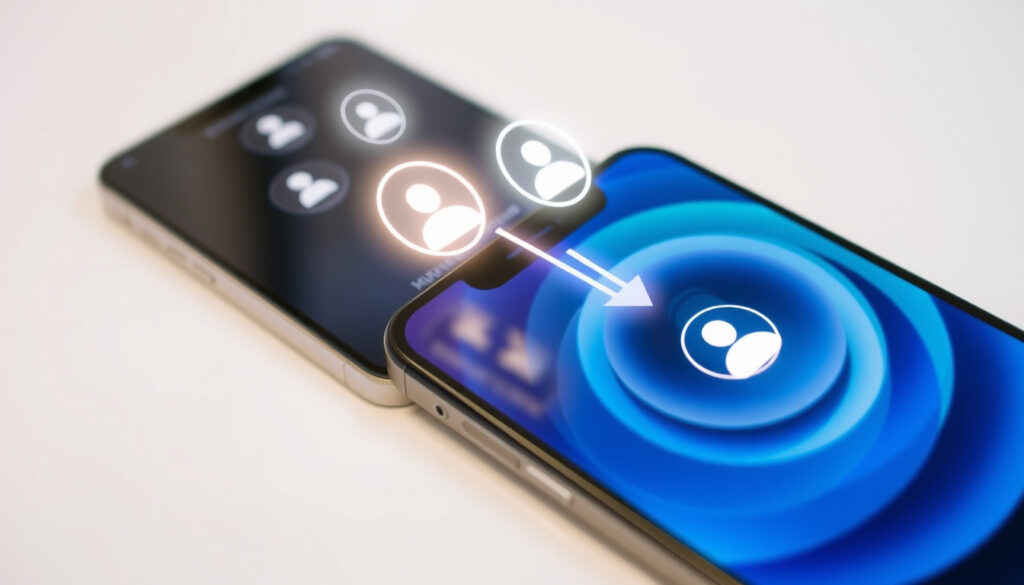
How to Transfer Contacts to New Phone: Android, iPhone Guide
Switching phones should feel like a fresh start, not a scavenger hunt for your contacts. Whether you’re moving from Android to iPhone, upgrading within the same ecosystem, or working with someone else’s old device, your friends and colleagues are already in there somewhere — you just need to know how to dig them out. Here’s how to transfer contacts to your new phone using the methods that actually work.
Primary Android Method: Google Contacts Sync · iPhone Primary Method: iCloud Backup · SIM Card Transfer Option: Import/Export Contacts · Cross-Platform Tool: Bluetooth or Cable
Quick snapshot
- Google sync works across Android devices (Google Support)
- iCloud requires same Apple ID for iPhone sync (Wide Angle Software)
- vCard (.vcf) is the universal export format (Wide Angle Software)
- Huawei-specific tools without Google services
- Move to iOS app: only during initial iPhone setup (Wide Angle Software)
- Use the method that fits your timing and platform situation
These key specifications help you choose the right transfer method for your situation.
| Method | Value |
|---|---|
| Android Default Sync | Google Contacts app |
| iPhone Default Sync | iCloud Contacts |
| SIM Capacity Limit | Typically 200–500 contacts (Croma Unboxed) |
| Bluetooth Transfer | Pair devices first |
How do I transfer all my contacts from my old phone to my new phone?
The short answer: it depends on which ecosystems you’re moving between. The good news is that every major platform has a built-in path — you just need to pick the right one for your situation.
General steps for any phone
For Android-to-Android transfers, your Google account is the bridge. On your old Android phone, open Settings > Accounts > Google, make sure Contacts sync is turned on, and let it pull everything up to the cloud. When you set up your new Android phone and sign in with the same Google account, your contacts will be there waiting. YouTube Guide (Video Tutorial) walks through these steps clearly.
For iPhone-to-iPhone transfers, the process hinges on iCloud. Open Settings > [your profile] > iCloud, flip the Contacts toggle to ON, and your address book uploads automatically. Sign into the same Apple ID on your new iPhone, and your contacts follow. Wide Angle Software (Tech Blog) has detailed instructions for this path.
Cloud sync handles ongoing updates automatically. Add a contact on one device, and it appears on the other — no repeat transfers needed.
Using SIM card
If you prefer a hardware-based approach, the SIM card method works without internet. On Android, go to Contacts > Settings > Export, select SIM as the destination, and choose which contacts to copy. Remove the SIM, insert it into your new phone, and import via Contacts > Settings > Import selecting SIM as source. Croma Unboxed (Tech Guide) covers this process in detail.
Keep in mind that SIM cards typically hold only 200–500 contacts, so this method works best for minimal address books. For larger contact lists, cloud-based methods are more practical.
Using vCard export
The vCard (.vcf) format is the universal language of contact sharing. On Android, export via Contacts > Settings > Export, choose vCard format, and save the file to storage. You can share it via email, messaging apps, or cloud storage. On the receiving device, import through Contacts > Settings > Import. Wide Angle Software (Tech Blog) confirms this works reliably across all platforms.
This method gives you a portable backup you can use anytime — useful if you’re unsure which new phone you’ll end up with or want a safety copy.
SIM card transfers may not support all contacts if limited by SIM capacity. Cloud sync has no such ceiling.
How do I get my contacts to sync to my new phone?
Sync is the set-it-and-forget-it approach — once configured, your contacts stay updated across every device linked to the same account. Google Support (Official Documentation) provides the definitive guide for Google sync on iOS.
Google Contacts sync for Android
On Android, sync is typically enabled by default when you add a Google account. To verify: open Settings > Accounts > Google, tap your account, and confirm Contacts is checked. Your existing contacts will upload, and any changes you make on your old phone will carry over to your new one automatically.
iCloud sync for iPhone
For iPhone, the path is Settings > [your profile] > iCloud > Contacts — toggle it ON. This uploads your address book to Apple’s servers and makes it available on any iPhone signed into the same Apple ID. Wide Angle Software (Tech Blog) documents this straightforward process.
The pattern is clear: enable sync on your old device first, sign into the same account on your new device, and everything transfers without manual intervention. Google sync on iOS works via Settings > Contacts > Add Account > Google, while iCloud Contacts sync requires the same Apple ID across iPhones.
Google Sync works reliably across platforms and costs nothing — it’s the practical choice for most users managing contacts between Android and iPhone.
How do I import all my contacts to my phone?
Importing means pulling contacts from an external source into your phone’s address book. The source could be a SIM card, a Google account, a vCard file, or another cloud service. Wide Angle Software (Tech Blog) covers all the main import paths in detail.
From SIM card
On Android, go to Contacts > Settings > Import, select the SIM card as your source, and choose the Google account (or phone storage) as the destination. The import runs immediately, and your SIM contacts appear in your address book.
From Google account
On iPhone, adding a Google account imports all contacts linked to it. Navigate to Settings > Contacts > Accounts > Add Account > Google, sign in, and toggle Contacts to sync. Set it as your default account via Settings > Contacts > Default Account > Google so new contacts save there. YouTube Guide (Video Tutorial) demonstrates these steps.
The implication: Google Sync gives you ongoing synchronization, while a one-time import gives you the contacts as a snapshot. Choose based on whether you need future updates.
How do I send my contacts to my new iPhone?
Getting contacts onto an iPhone depends on where you’re coming from and when you’re doing the transfer. Apple Support (Official Documentation) provides the authoritative guide for the official Apple method.
iCloud method
For iPhone-to-iPhone transfers, iCloud handles everything. Ensure Contacts is enabled on your old iPhone (Settings > [profile] > iCloud > Contacts ON), then sign into the same Apple ID on your new iPhone during setup. Your contacts download automatically.
AirDrop or cable
For quick, ad-hoc transfers, share a contact via AirDrop (iPhone to iPhone only) or export a vCard and send it via email or messaging to yourself. Wide Angle Software (Tech Blog) describes the share workflow: open the contact, tap Share, and choose your delivery method.
From Android to iPhone
The official Apple solution is the Move to iOS app. Download it on your Android phone, start setting up your new iPhone and select “Move from Android,” then enter the code shown on your iPhone into the app. Aiseesoft (Software Review) notes that Move to iOS displays a 6 or 10-digit code for pairing. The app transfers your contacts during the initial iPhone setup process.
The catch: Move to iOS only works during initial iPhone setup, not after you’ve already configured the device. Wide Angle Software (Tech Blog) confirms this key limitation. For post-setup transfers, use Google Sync instead.
Move to iOS handles one-time complete transfers during setup. Google Sync handles ongoing synchronization and works whenever — choose based on timing.
How do I transfer contacts to new phone from Android?
Moving from Android opens several paths, depending on your destination and how much control you want over the process. Wide Angle Software (Tech Blog) documents the full range of options.
Samsung specific
Samsung devices use the same Google account sync as other Android phones — there’s nothing Samsung-specific about the contact transfer process itself. Add your Google account in Settings > Accounts > Google, ensure Contacts sync is enabled, and your address book backs up to the cloud.
Bluetooth transfer
Bluetooth works for contact sharing between any phones that support it, though it’s slower and less convenient than cloud methods. Pair the devices via Bluetooth settings, then use the Contacts app’s share function to send individual contacts or a vCard file to the paired device. This works for one-off transfers but isn’t practical for moving hundreds of contacts.
Without old phone
If you no longer have access to your old phone, your cloud accounts are your lifeline. Sign into your Google account on any new Android device, and your contacts download automatically. Wide Angle Software (Tech Blog) confirms this works reliably for any Android phone.
For iPhone access to Google contacts, use the path Settings > Contacts > Add Account > Google and sign in. Your Google contacts import into the iPhone’s Contacts app.
Third-party tools like MobileTrans and Contact Transfer enable direct phone-to-phone transfers via computer, offering selective transfer and duplicate management — useful if cloud sync isn’t an option.
Upsides
- Google Sync provides ongoing cross-platform synchronization for free
- Move to iOS handles complete one-time transfers during iPhone setup
- vCard format works universally without requiring cloud accounts
- SIM card transfers work offline without internet
Downsides
- Move to iOS only works during initial iPhone setup, not post-configuration
- SIM cards limited to 200–500 contacts
- Google Drive backup transfers all contacts without selection
- Huawei devices without Google services face limited tool support
What experts say
The first port of call when switching to an iPhone is to use Apple’s own app “Move to iOS.”
— Wide Angle Software
Ready to transfer to iOS? Download the Move to iOS app.
Sync Google Contacts to Your Google Account (on Android): Ensure Contacts is toggled on.
Bottom line
Google Sync works reliably across platforms and costs nothing — for most users juggling Android and iPhone, it’s the practical choice for ongoing contact management. Apple’s Move to iOS app handles the official route for Android-to-iPhone transfers during setup, backed by Apple Support (Official Documentation). Google Contacts sync on iOS is documented by Google Support (Official Documentation). Third-party options like MobileTrans and Contact Transfer fill gaps for direct phone-to-phone transfers via computer.
The pattern is straightforward: enable sync on your old device, sign into the same account on your new one, and your contacts transfer automatically. For one-time moves, vCard export gives you a portable backup. For Android users moving to iPhone during setup, Move to iOS is the official recommendation.
Can I transfer contacts using Bluetooth?
Yes, but it’s impractical for large numbers. Pair your devices via Bluetooth settings, then share contacts individually through the Contacts app’s share function. For bulk transfers, cloud sync or vCard export is faster and more reliable.
How do I transfer contacts without a SIM card?
SIM cards are increasingly unnecessary. Cloud sync handles everything — sign into your Google account on Android or add it to iPhone via Settings > Contacts > Add Account > Google, and your contacts appear automatically.
What if my contacts are on a Google account?
If your contacts live in Google, signing into that account on your new Android phone pulls them in immediately. On iPhone, add the Google account via Settings > Contacts > Add Account > Google — your contacts sync over automatically.
How to transfer contacts from Huawei phone?
Huawei devices without Google services face limited options. Export contacts as a vCard file via the Contacts app, transfer via email or local connection, and import on your new phone through its Contacts app settings.
Is there a way to transfer all data including contacts?
Most phones back up contacts automatically when you sign into your Google or Apple account. For full data transfers, use your phone manufacturer’s built-in backup tool during setup — it typically includes contacts alongside photos, messages, and apps.
How do I backup contacts before transfer?
Export your contacts as a vCard file from your old phone’s Contacts app settings. Save it to cloud storage or email it to yourself as a backup. This gives you a portable file you can import into any new device.
What apps help transfer contacts cross-platform?
SyncGene syncs Google and iCloud contacts across platforms. MobileTrans transfers directly between phones via computer with duplicate management. Contact Transfer handles selective transfers between Android and iPhone without cloud services.
Related reading: How to Screenshot on Samsung · How to Pair AirPods
youtube.com, syncgene.com, mobiletrans.wondershare.com, youtube.com
Once contacts are synced via Google or iCloud, expand to photos and messages using the detailed data transfer guide tailored for Android and iPhone switches.
More related posts
 10 Year Wedding Anniversary: Gifts and Traditions
 NZ Dollars to Euros: Live Rate, Conversion & Forecast
 Portrait of a Lady on Fire: True Story, LGBTQ+ Themes, Age Rating
 Chihuahua for Sale NZ: Cost, Breeders & Rescue Guide
 Authentic Raw Fish Recipe NZ: Ika Mata & Ota Ika Guide
 Nelson, New Zealand – Complete Travel Guide
 Upper Hutt Train Timetable – Metlink Schedules and Times
 All Blacks vs Scotland 2026: how to watch & history
